

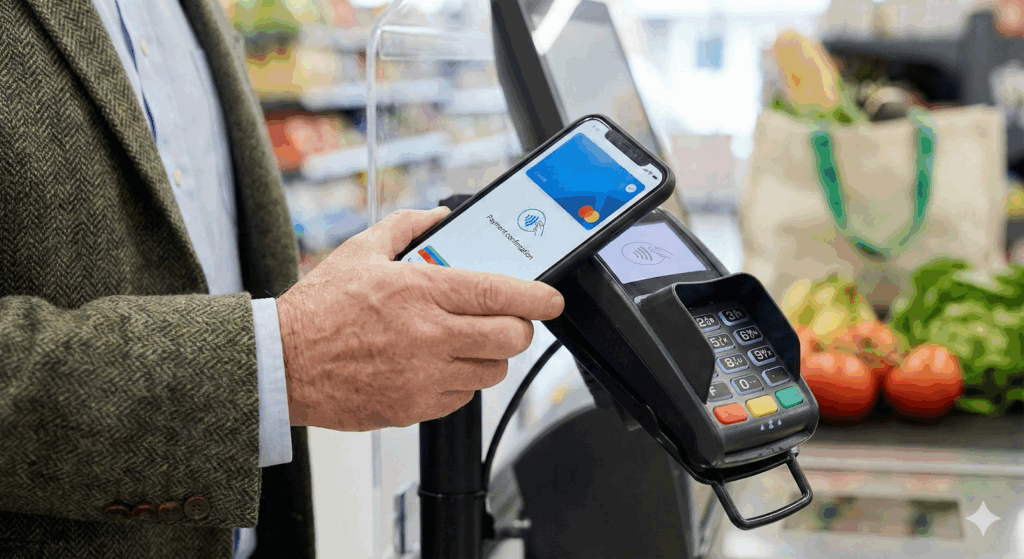

You see it everywhere: people tapping their phones to pay for coffee or groceries instead of pulling out a wallet. It’s called a Digital Wallet (like Apple Pay or Google Pay).
For many seniors, this feels risky. Is it safe to have your credit card information “in the air”? What if you lose your phone? Isn’t a physical card with a chip safer?
The answer might surprise you: Using your phone is actually much safer than using your plastic card.
Our goal is to explain the technology behind digital wallets in simple terms, showing you exactly why they offer superior protection and guiding you through the straightforward setup process to secure your finances against fraud.
Key Takeaways
- The “Token” Secret: Digital wallets don’t send your card number. They send a random, one-time “token” that is useless to hackers.
- Physical Security: If you lose your plastic card, anyone can use it. If you lose your phone, they can’t pay without your Face ID, Fingerprint, or PIN.
- Skimmer Proof: Digital payments cannot be stolen by gas pump skimmers because there is nothing to “swipe.”
- It’s Free: Digital wallets are a free feature built into almost every modern smartphone.
The Security Flaw of Plastic Cards
- The Risk: A dishonest employee can snap a photo of it. A “skimmer” device hidden in the machine can copy the magnetic stripe. Once they have those numbers, they can shop online with your money until you cancel the card.
Why Apple Pay (and Google Pay) is Safer
How it Works (The Simple Explanation):
- You Tap: You hold your phone near the reader.
- The “Token”: Instead of sending your real credit card number (e.g., 4147…), your phone creates a unique, one-time code just for that specific transaction.
- The Transaction: The bank recognizes the code and approves the sale.
- The Safety: Even if a hacker steals that code, it is useless. It cannot be used again. Your real card number never left your phone.
Comparison: Plastic Card vs. Digital Wallet
See exactly why switching to your phone protects your identity.
|
Security Feature
|
Physical Plastic Card
|
Digital Wallet (Apple/Google)
|
|---|---|---|
|
Data Shared
|
Your
Real
Name & Card Number.
|
A One-Time random code.
|
|
Skimmer Risk
|
High.
Magnetic stripes are easy to copy.
|
Zero. There is nothing to swipe.
|
|
If Lost/Stolen
|
Usable immediately by anyone.
|
Locked. Requires your Face ID or PIN to use.
|
|
Online Safety
|
Vulnerable if you type numbers into a site.
|
Secure if you use the "Pay with Apple/Google" button.
|
What If I Lose My Phone?
This is the biggest fear many seniors have about digital wallets,
but the reality is that losing your phone is far safer than losing your wallet.
- Lost Wallet Scenario:
If you drop your wallet, a thief can pick it up, pull out your credit card,
and immediately start buying gift cards at Target or groceries.
No password is required for most in-store purchases.
You have to rush to cancel every single card. - Lost Phone Scenario:
If a thief picks up your phone, they are holding a locked brick.
To use Apple Pay or Google Pay, they need your Face ID,
your Fingerprint, or your Passcode.
Without your biometrics, they cannot spend a dime.
Your money is locked behind a security wall that a plastic card simply doesn’t have. - The “Remote Wipe” Advantage:
Furthermore, if your phone is lost, you can use a service like
“Find My iPhone” or Google’s “Find My Device” to remotely erase all your data—
including your credit cards—from anywhere in the world.
You can’t do that with a lost wallet.
Top Picks: Cards That Work Best with Digital Wallets
Any major credit card works, but these no-fee cards have excellent mobile apps that make tracking your digital spending easy.
Quick Comparison: Top Digital Wallet Cards
|
Card Name
|
Best For
|
Digital Perk
|
|
|---|---|---|---|
|
SoFi Unlimited 2%
|
Security
|
Instant transaction alerts & flat 2% back.
|
|
|
Capital One Quicksilver
|
Simplicity
|
Easy-to-use app for tracking spending.
|
None.
|
|
Chase Freedom Unlimited®
|
Flexibility
|
High rewards on dining & instant lock feature.
|
1. Best for Security: SoFi Unlimited 2% Credit Card
Sagewise Rating: 5.0
- Why: It has instant transaction alerts that pop up on your phone the second you use Apple Pay, confirming the charge. Plus, it earns a flat 2% cash back on every mobile purchase. Check Rates at SoFi
2. Best for Simplicity: Capital One Quicksilver
Sagewise Rating: 4.0
- Why: The Capital One mobile app is rated #1 for ease of use. It makes seeing your digital transactions incredibly simple for seniors who aren’t tech experts. Check Rates at Capital One
3. Best for Flexible Spending: Chase Freedom Unlimited®
Sagewise Rating: 4.5
- Why: This card is fully integrated with digital wallets and offers high cash back (3%) on dining and drugstores—the two places you tap your phone the most. The Chase mobile app also allows you to easily lock and unlock your card instantly for extra security. Check Rates at Chase
Your Phone Security Checklist (Before You Add a Card)
- [ ] 1. Enable a Passcode: Ensure your phone requires a PIN or Passcode to unlock. Use a 6-digit code, not “1234.”
- [ ] 2. Turn on Biometrics: Enable Face ID (iPhone) or Fingerprint Unlock (Android). This is the key to making your payment faster and safer than a plastic card.
- [ ] 3. Enable “Find My Device”: Turn on “Find My iPhone” or Google’s “Find My Device.” This allows you to remotely erase your phone if it is ever lost or stolen.
- [ ] 4. Set Up Banking Alerts: Download your credit card’s app and turn on “Push Notifications” so you see every charge the moment it happens.
Step-by-Step: How to Set It Up Safely
For iPhone (Apple Pay):
- Open the “Wallet” app (it’s built-in).
- Tap the “+” sign in the corner.
- Scan Your Card: Use the camera to take a picture of your credit card (no typing needed).
- Verify: Your bank will text you a code to confirm it’s really you. Enter the code.
- Done: You can now pay by double-clicking the side button and looking at your phone (Face ID).
For Android (Google Pay):
- Open the “Google Wallet” app.
- Tap “Add to Wallet” → “Payment Card.”
- Take a photo of your card and verify with your bank.
- Done: You can now pay by unlocking your phone and holding it near the reader.
Frequently Asked Questions (FAQ)
No. It is 100% free. Neither Apple, Google, nor your bank charges you a fee for using it.
You should always carry one physical card as a backup. While most major stores (Target, Costco, Grocery Stores, Pharmacies) accept it, some small businesses and “sit-down” restaurants still require a physical card.
No. Apple Pay is designed with privacy in mind. Apple does not store your transaction history or sell your shopping data to advertisers. It is more private than using a traditional rewards card.
Yes! Many modern bank ATMs (like Chase and Wells Fargo) have a “contactless” symbol. You can tap your phone and enter your PIN to get cash without risking a card skimmer stealing your info.
ook for the “Contactless” Symbol (four curved waves, like a sideways Wi-Fi symbol) or the Apple Pay/Google Pay logo on the card reader or the front door.
Find a Safer Credit Card (Upgrade to a modern, secure card today.)